

Clear, reliable audio is critical for business communication, but even the best Avaya phone systems can experience sound quality problems. From voice echo and static to one-way audio, these issues can disrupt calls and impact productivity.
In this guide, we’ll cover the top sound quality problems with Avaya IP phones, explain why they happen, and provide practical solutions from quick fixes to advanced troubleshooting techniques.
Whether you’re an IT professional or a business owner managing your own system, these tips will help ensure your Avaya phones deliver crisp, clear, and reliable audio every time.
- Problem 1: Voice Echo
- Problem 2: Static or Crackling Sounds
- Problem 3: One-Way Audio
- Advanced Troubleshooting Techniques
- Preventative Maintenance Tips
- Get Reliable 24/7 Telecommunication Support You Can Count On
Ready to optimize your Avaya phone system? Contact Network Telecom today to speak with our expert support team and get your system performing at its best.
Key Takeaways
- Voice echo, static, and one-way audio are the most common sound quality issues on Avaya IP phones.
- High speaker volume, network problems, and SIP trunk misconfigurations are frequent causes of these issues.
- Simple fixes, like lowering volume or checking connections, can resolve many common problems quickly.
- Advanced troubleshooting, including reviewing codec settings, SIP trunks, and QoS configurations, helps resolve persistent or complex audio issues.
- Preventative maintenance, such as regular system updates, network monitoring, and hardware inspections, reduces the likelihood of call quality problems.
- Network Telecom provides 24/7 support, decades of experience, and local expertise for businesses in Kitchener-Waterloo, Cambridge, Guelph, and beyond.
- Proactive attention to system health and network performance ensures clear, reliable, and consistent business communications.
Most Common Call Quality Complaints
Avaya Phone System Sound Quality Issues
Problem 1: Voice Echo

Avaya phone system sound quality issues: Regularly check and adjust volume settings for both your handset and headset.
Explanation:
Voice echo is one of the most commonly reported issues with IP phone handsets. It typically occurs when sound from the speaker is picked up by the microphone, creating a “loop” that results in an echo during calls. Echoes can be distracting and make conversations difficult to understand.
Solution:
High speaker volume is often the primary cause of voice echo. To test this, cover the microphone on your handset briefly. If the echo stops, your phone’s speaker volume is likely too high. Adjust the volume down to a comfortable level to prevent the echo.
If you still experience echo after lowering your own volume, the issue may be on the other end of the call. Ask the person you are speaking with to reduce their speaker volume, as their high volume can also contribute to echo.
Tip:
Regularly check and adjust volume settings for both your handset and headset, as proper levels can prevent echo and improve overall call clarity.
Problem 2: Static or Crackling Sounds
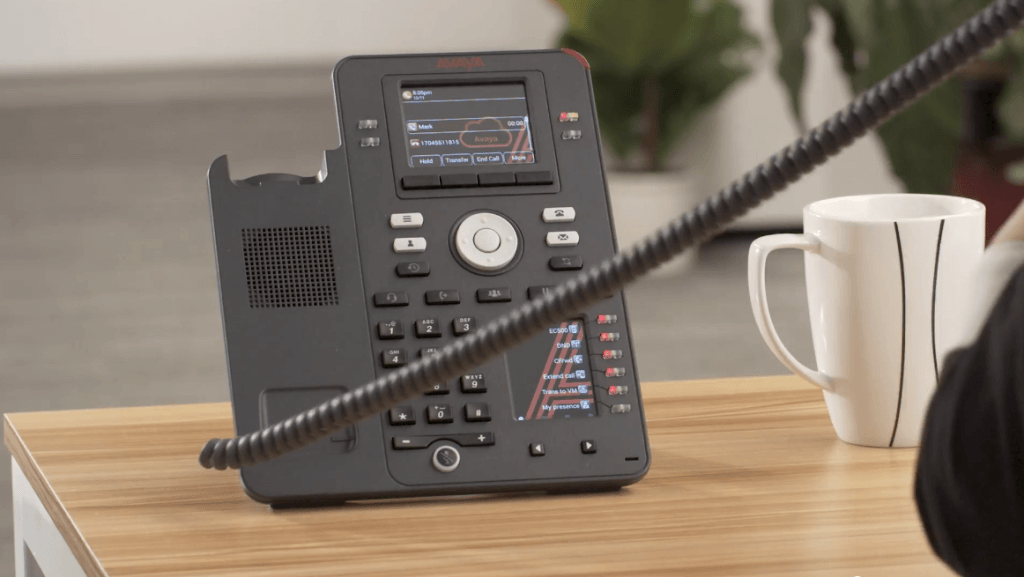
Avaya phone system sound quality issues: Keep your network devices updated with the latest firmware.
Explanation:
Static, crackling, or intermittent noise on an IP phone call can make it difficult to hear the other party clearly. This problem is usually related to network issues, wiring, or hardware interference.
Solution:
- Check network connections: Ensure all Ethernet cables are securely connected and undamaged. Replace any worn or frayed cables.
- Inspect network performance: High packet loss, jitter, or latency can cause audio disruptions. Use network monitoring tools to check for these issues and prioritize voice traffic with QoS settings.
- Test hardware: If static persists, test with a different handset or headset. Sometimes faulty equipment is the root cause.
Tip:
Keep your network devices updated with the latest firmware and monitor your network regularly to prevent recurring audio problems.
Problem 3: One-Way Audio

Avaya phone system sound quality issues: One-way audio issues are usually related to network or configuration errors.
Explanation:
One-way audio occurs when one person on the call can hear the other, but the sound does not transmit back. This issue is often caused by misconfigured SIP trunks, firewall settings, or NAT traversal problems.
Solution:
- Check SIP trunk settings: Ensure that registration intervals, timers, and codecs match the provider’s specifications.
- Inspect firewall and NAT configurations: Open all necessary ports for SIP traffic and verify that SIP ALG settings are either correctly configured or disabled if causing interference.
- Test endpoints: Verify that both handsets are correctly registered to the phone system and that firmware is up to date.
Tip:
One-way audio issues are usually related to network or configuration errors. Conducting a systematic review of SIP and network settings typically resolves the problem quickly.
Advanced Troubleshooting Techniques
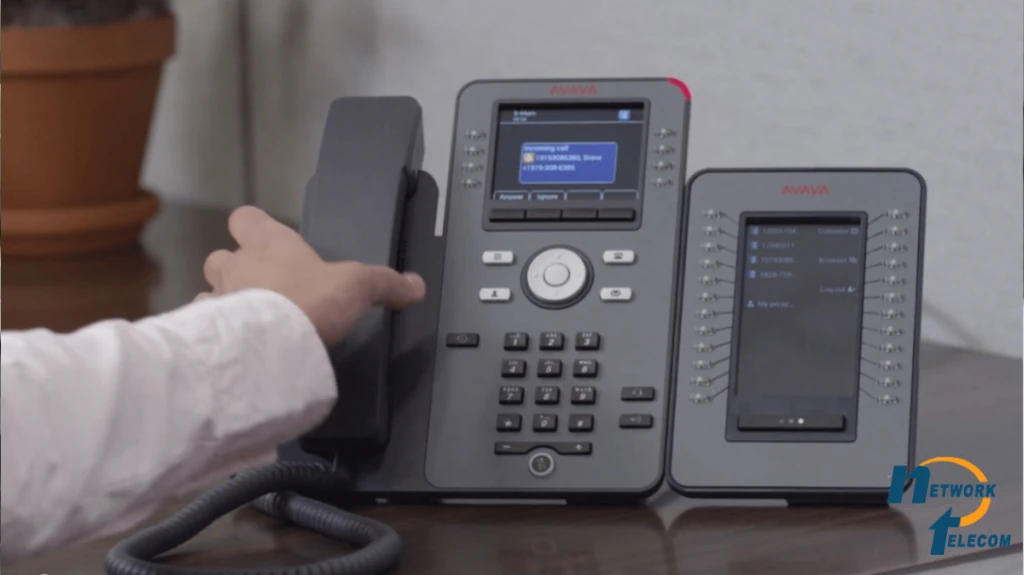
By carefully reviewing system configurations and network conditions, experienced users can ensure that their business calls remain clear and uninterrupted.
For experienced users, some sound quality issues on Avaya phone systems can stem from complex configurations or network conditions. Addressing these problems often requires a deeper understanding of codecs, SIP trunks, and system settings.
Below are advanced strategies to help you resolve more challenging sound quality issues:
Check for codec mismatches.
Ensure that all endpoints, gateways, and SIP trunks are using compatible codecs. Codec mismatches can cause poor audio quality, dropped calls, or one-way audio. Standardizing on commonly supported codecs, such as G.711 or G.729, often resolves these issues.
Examine SIP trunk configurations.
Misconfigured SIP trunks can result in packet loss, latency, or jitter. Verify that the SIP trunk settings match your provider’s recommendations, including registration intervals, timers, and codec preferences.
Analyze call logs and QoS statistics.
Use Avaya diagnostic tools to review call logs, MOS (Mean Opinion Score) values, and network performance metrics. Identifying patterns in call degradation can pinpoint specific sources of audio issues.
Adjust jitter buffers and echo cancellation.
Some endpoints allow fine-tuning of jitter buffers or echo cancellation parameters. Experiment with these settings carefully, as improper adjustments can worsen audio quality.
Verify firewall and NAT configurations.
Firewalls or NAT devices may block or delay SIP traffic, affecting call quality. Ensure that all necessary ports are open and that SIP ALG (Application Layer Gateway) settings are properly configured or disabled if needed.
Implementing these advanced troubleshooting techniques can resolve persistent or complex audio issues and optimize your Avaya phone system for high-quality, reliable communication. By carefully reviewing system configurations and network conditions, experienced users can ensure that their business calls remain clear and uninterrupted.
Relevant Avaya / Telecom Documentation & Whitepapers
-
Echo Cancellation in Avaya Branch Gateways
Avaya documentation on echo cancelers in branch gateways, including how echo cancellation is controlled on a per-call basis.
Avaya Documentation -
Setting Up Echo Elimination / Echo Cancellation
Instructions for configuring acoustic echo cancellation (AEC) in Avaya room system / audio devices.
Avaya Documentation -
Administration of Network Connectivity & Echo Control in Avaya Communication Manager
This document details how Avaya’s DS1 circuit packs (e.g. TN464HP / TN2464CP, MM710) support echo cancellation and how the echo cancellation parameters and direction settings can be configured.
DataCom+1 -
SIP Trunk Optimization in Avaya Communication Manager
Guidance on how to configure and optimize SIP trunks in Avaya systems, which is relevant when discussing SIP trunk misconfigurations.
Avaya Documentation -
Configuring a SIP Trunk in Avaya IP Office / Standard Mode
A step-by-step procedure for configuring SIP trunks between IP Office systems (useful when matching trunk settings, codec negotiation, etc.).
Avaya Documentation -
Configuring the SIP Trunk Server in Avaya SBC / Multi-Tenancy Environments
Documentation for setting up SIP trunk servers in Avaya Session Border Controllers, which is relevant for the “firewall/NAT / SIP trunk configuration” aspect.
Avaya Documentation
Preventative Maintenance Tips
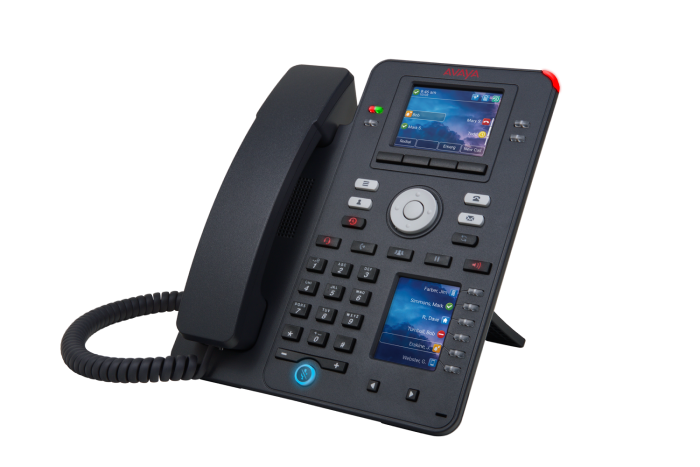
Regular attention to updates, monitoring, and equipment care ensures that your business communications remain clear and reliable year-round.
Maintaining optimal sound quality on your Avaya phone system is easier when you proactively manage your hardware, software, and network. Regular maintenance helps prevent issues before they impact your business communications.
Here are some key preventative practices to keep your system running smoothly:
- Perform routine system updates. Regularly update your Avaya phone system firmware and software to ensure you have the latest performance improvements and security patches.
- Monitor network performance. Keep an eye on network metrics such as latency, jitter, and packet loss to ensure voice traffic is prioritized and performs reliably.
- Check and maintain cabling and connections. Ensure all Ethernet cables and network connections are in good condition, secure, and compliant with recommended specifications.
- Review QoS settings regularly. Confirm that Quality of Service (QoS) settings are correctly configured to prioritize voice traffic over other network data.
- Test phones and endpoints periodically. Conduct regular call quality tests on different phones to catch issues before they affect daily operations.
- Schedule routine backups. Regularly back up system configurations to prevent data loss and facilitate quick recovery if issues occur.
- Clean and inspect hardware. Dust and debris can affect equipment performance, so keep physical devices clean and free from obstructions.
By implementing these preventative measures, you can significantly reduce the likelihood of sound quality problems and keep your Avaya system performing at its best. Regular attention to updates, monitoring, and equipment care ensures that your business communications remain clear and reliable year-round.
Effectiveness of Preventative Maintenance Steps
Reliable 24/7 Telecommunication Support You Can Count On

At Network Telecom, we are committed to keeping your business connected. We provide 24/7 support, 365 days a year, ensuring that no matter when an issue arises, our experienced team is ready to help. From urgent troubleshooting to long-term system optimization, we make sure your communications run smoothly at all times.
Founded in 1979, Network Telecom has more than four decades of experience in business telecommunication technology. Over the years, we have adapted to every major innovation from traditional PBX systems to cutting-edge VoIP solutions, giving our clients the most effective, reliable, and future-proof communications systems available.
We are proud to serve the Kitchener-Waterloo, Cambridge, Guelph, and surrounding regions, providing local businesses with personalized service and deep technical expertise. Our team combines decades of industry knowledge with a hands-on approach, offering solutions that are tailored to the unique needs of each client.
At Network Telecom, we don’t just provide technology, we provide partnership and peace of mind. Our goal is to ensure your business stays connected, productive, and supported through every challenge and change in the communications landscape.
Get in touch with us today to discuss how Network Telecom can help your business maintain crystal-clear phone quality, reliable connectivity, and systems optimized for growth.
The entire project was orchestrated with minimal telephone system downtime, and the ongoing support we have received from them has been reliable and efficient.